
Installation
Install or update NeoBuyer.
Choose your situation to see only the instructions that apply to you.
First ever install
Use these steps if NeoBuyer is not currently installed in Chrome.
- 1
Download and extract
Download the official NeoBuyer ZIP, extract it, and move the folder to a permanent location such as Documents.
Download NeoBuyerVersion 0.5.1 · ZIP fileShow detailed instructions
Chrome normally saves the ZIP in Downloads. On macOS, double-click it. On Windows, right-click it and choose Extract All. Move the extracted folder—not the ZIP—to a location you will keep.
- 2
Open Chrome Extensions
Enter
chrome://extensionsin Chrome's address bar.Show detailed instructions
Open a new Chrome tab, select the address bar, type
chrome://extensions, and press Enter. - 3
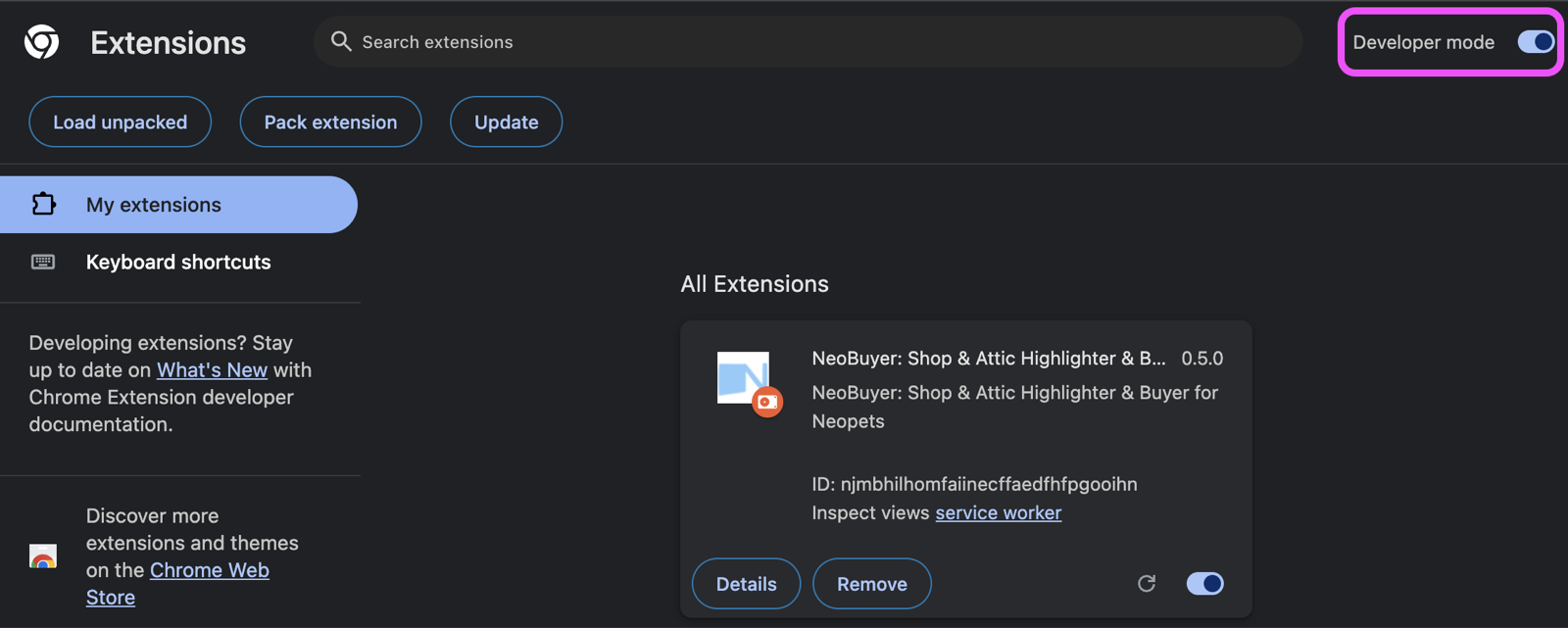
Enable Developer mode
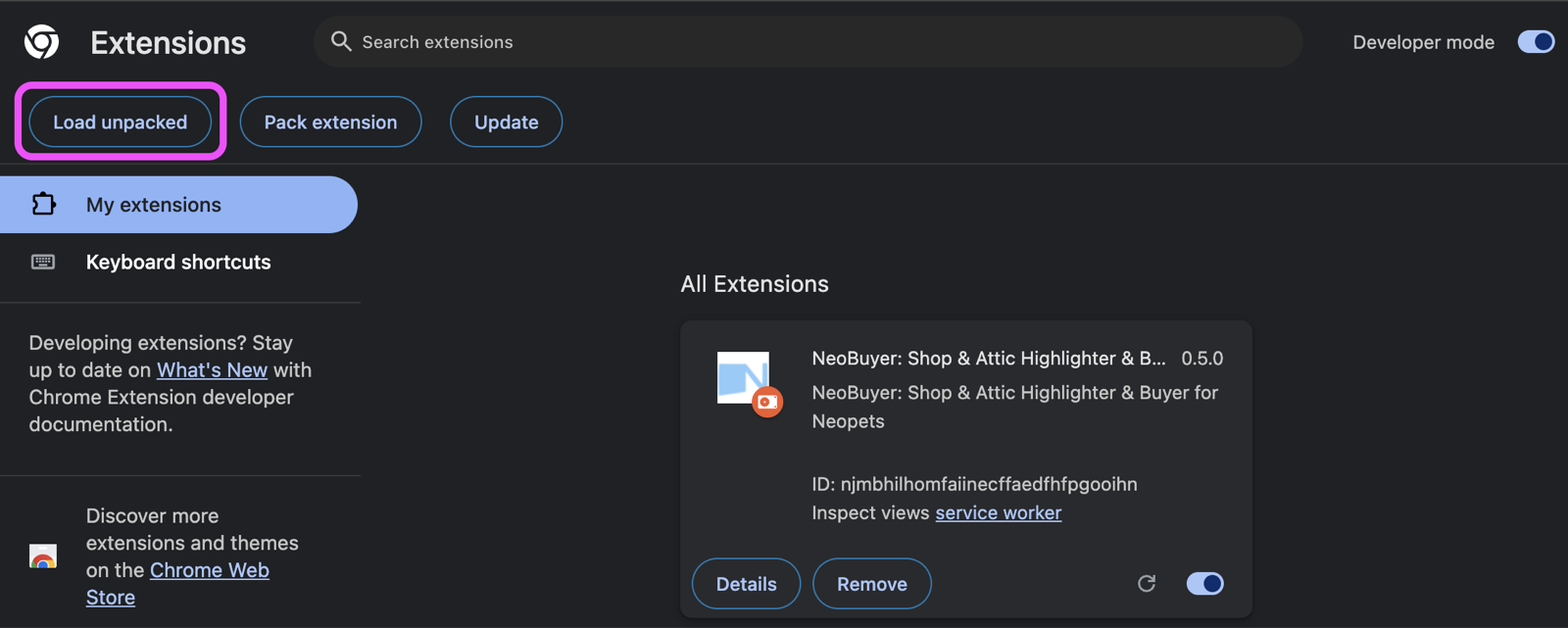
Turn on Developer mode, then select Load unpacked.
Show detailed instructions
The Developer mode switch is in the upper-right corner.
After turning it on, select Load unpacked near the upper-left corner.
- 4
Select the NeoBuyer folder
Open the extracted
neobuyer-v0.5.1folder and select the inner NeoBuyer folder.Show detailed instructions
Select the NeoBuyer folder that directly contains
manifest.json, not the ZIP or the outer versioned folder. The inner folder will continue to be named NeoBuyer in future releases.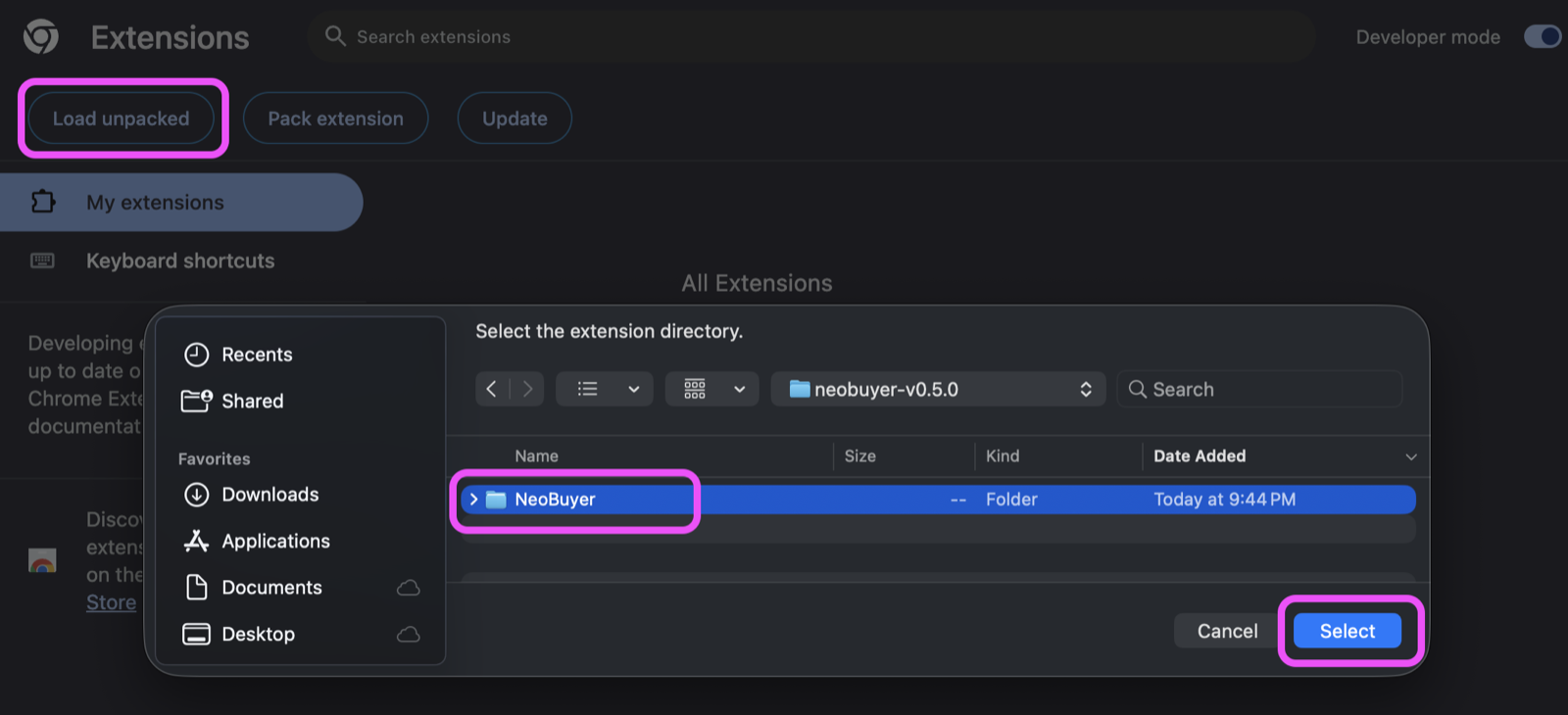
- 5
Sign in or subscribe
Open NeoBuyer Settings, sign in or subscribe, configure your settings, and verify the status banner in a Neopets main shop.
Show detailed instructions
Confirm Version 0.5.1 or later appears in the lower-right corner of NeoBuyer Settings.
Updating a previous direct install
Keep NeoBuyer installed, update the files in its permanent folder, and reload it in Chrome.
- 1
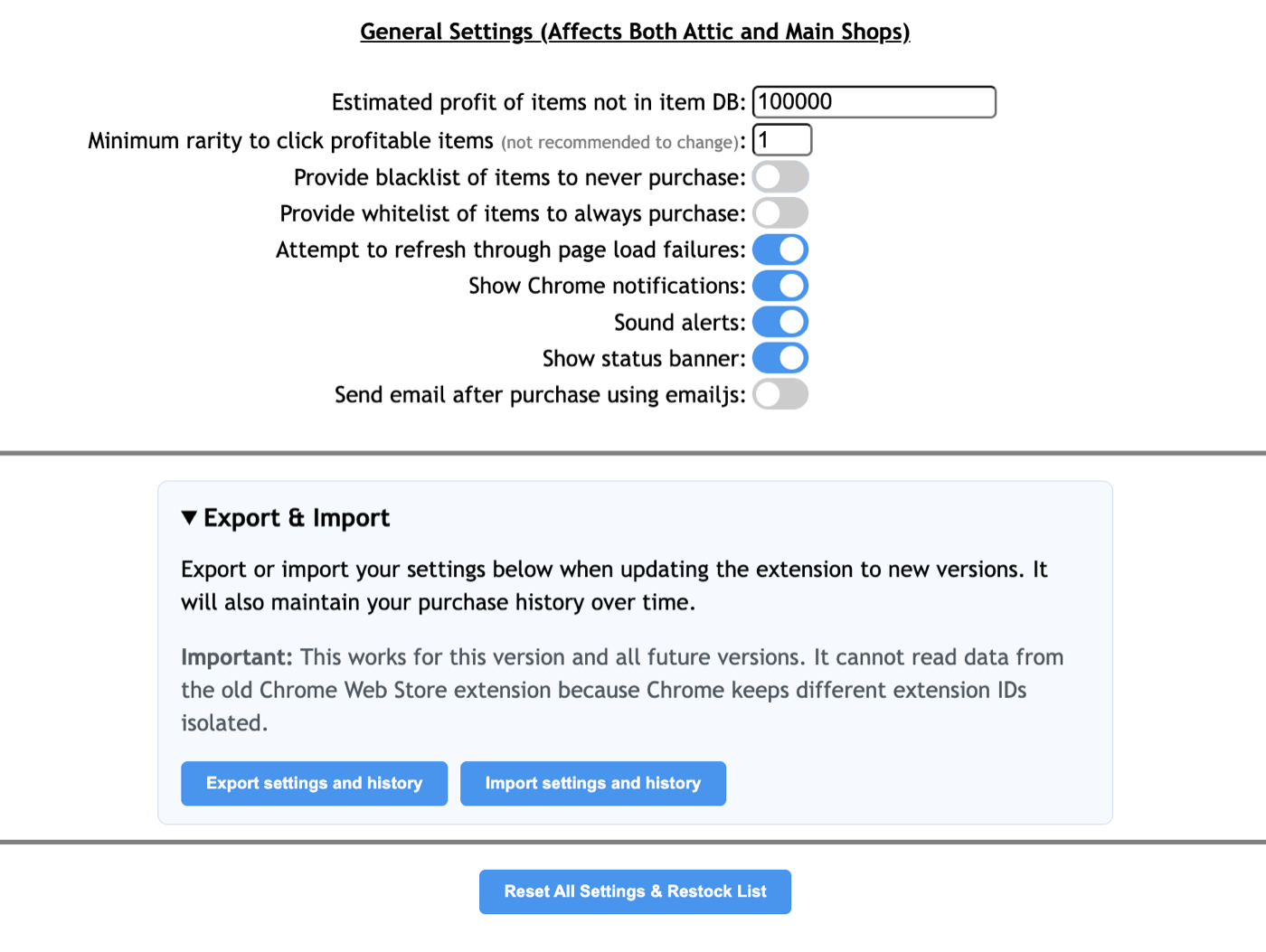
Export settings and history
Open NeoBuyer Settings, expand Export & Import, and select Export settings and history.
Show detailed instructions
Save the JSON file somewhere easy to find. It is a recovery copy of your direct-version settings and purchase history.
- 2
Download and extract the update
Download the new NeoBuyer ZIP and extract it.
Download NeoBuyerVersion 0.5.1 · ZIP fileShow detailed instructions
Chrome normally saves the ZIP in Downloads. On macOS, double-click it to extract it. On Windows, right-click it and choose Extract All. Open the extracted
neobuyer-v0.5.1folder to find the inner NeoBuyer folder. - 3
Replace the installed files
Copy the files from the new inner NeoBuyer folder into the existing NeoBuyer folder you previously selected with Load unpacked.
Show detailed instructions
Keep your existing NeoBuyer folder in the same permanent location and replace its contents with the contents of the newly downloaded NeoBuyer folder. Do not remove NeoBuyer from Chrome. If you cannot find the old folder, your exported JSON lets you perform a fresh install and then import your settings and history.
- 4
Reload NeoBuyer
Open
chrome://extensions, find NeoBuyer, and select its Reload button.Show detailed instructions
If Chrome reports a missing file, confirm the permanent NeoBuyer folder now contains the updated
manifest.jsonand all extracted files, then select Reload again.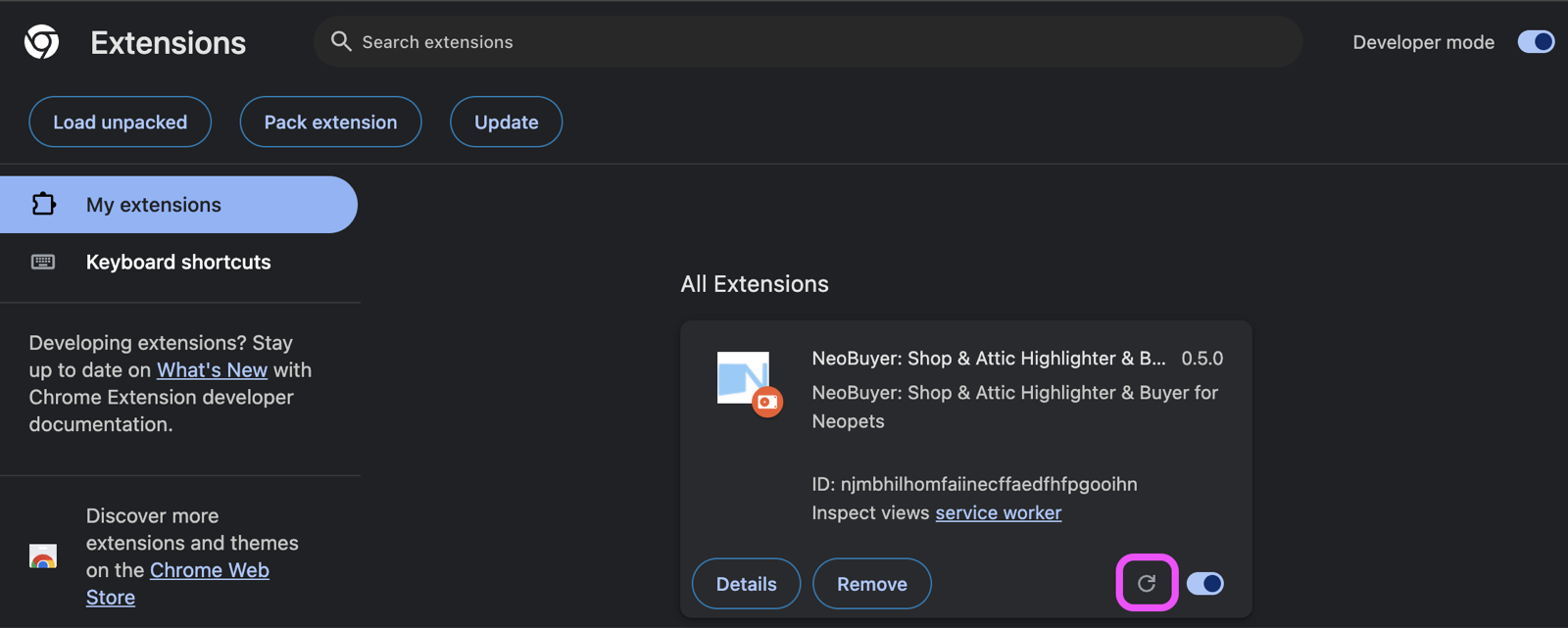
- 5
Confirm the update
Open NeoBuyer Settings and confirm the new version number. Your existing settings and history should remain in place.
Show detailed instructions
If settings or history are missing, expand Export & Import, select Import settings and history, and choose the JSON file you exported in step 1.
Moving from the old Chrome Web Store extension
The old and direct versions have different extension IDs, so Chrome keeps their settings and history separate.
- 1
Record your old settings
You will have to manually reenter your desired settings when switching from Version 0.4.6 (or earlier) to Version 0.5.0 or later.
Why can't NeoBuyer transfer them?
Chrome does not allow one extension ID to read another extension's local storage, so the direct version cannot import settings or history from the old Web Store version.
- 2
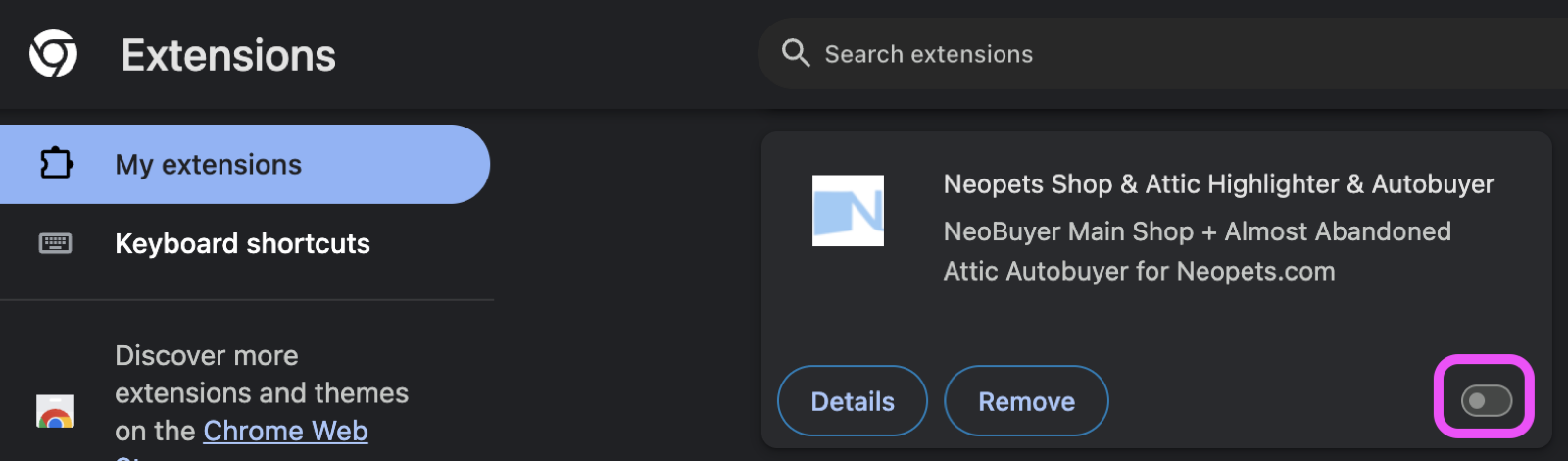
Disable the Web Store version
Open
chrome://extensionsand switch off the old NeoBuyer version without removing it.Show detailed instructions
Use the switch on the old NeoBuyer extension card to disable it. Never enable both versions at once because both can act on the same Neopets page. Keep the old version disabled until the direct version is working.
- 3
Download and extract
Download the official NeoBuyer ZIP, extract it, and move the folder to a permanent location.
Download NeoBuyerVersion 0.5.1 · ZIP fileShow detailed instructions
Chrome normally saves the ZIP in Downloads. On macOS, double-click it to extract it. On Windows, right-click it and choose Extract All. Open the extracted
neobuyer-v0.5.1folder, then move the inner NeoBuyer folder to a location such as Documents that you will keep. - 4
Load the direct version
On
chrome://extensions, enable Developer mode, select Load unpacked, and choose the inner NeoBuyer folder.Show detailed instructions
Turn on Developer mode in the upper-right corner.
Select Load unpacked near the upper-left corner.
Open the extracted
neobuyer-v0.5.1folder and choose the inner NeoBuyer folder containingmanifest.json.Confirm Version 0.5.1 or later appears and that the old Web Store version remains disabled.
- 5
Sign in and reenter settings
Sign in with your existing subscription email, reenter your desired settings, and verify the status banner in a Neopets main shop.
Show detailed instructions
After the direct version is working correctly, you can remove the disabled Web Store version.
Need help?
Installation support is available.
Email us at autobuyerforneopets@gmail.com if you have trouble installing or signing in.
Email NeoBuyer support